Your main screen for Road Ready status, vehicle details, the current journey, destination map, tank levels, and six Quick Actions.
Van Companion 2.0
Tutorials &
User Guide
Everything you need to set up your van, prepare for departure, manage a journey, and get full value from Van Companion.
Updated September 3, 2026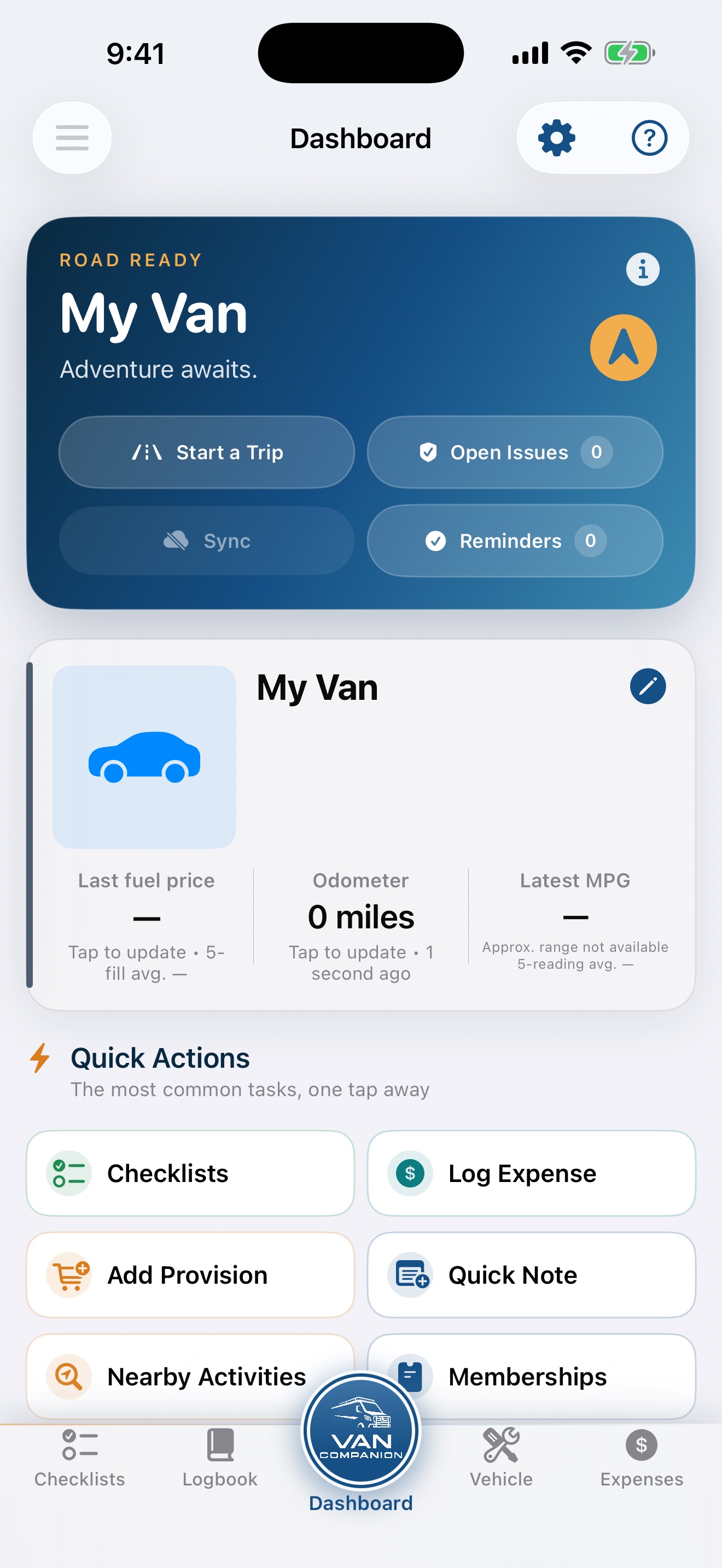
Table of contents
Choose what you want to do.
01
Download & first launch
→02Begin the Premium Preview and choose permissions.
Set up your vehicle
→03Use the VIN lookup, then personalize your RV or van.
Learn the main screens
→04Understand the five primary areas of the app.
Complete safety checklists
→05Record departure readings and readiness checks.
Plan and complete a journey
→06Start a trip, navigate to stops, and end it.
Find Nearby Activities
→07Search around you or explore farther down the road.
Track expenses & reports
→08Record costs, calculate MPG, filter, and export.
Connect a Co-Pilot
→09Create one shared workspace for two travelers.
Plans & subscriptions
→10Choose a plan, restore purchases, and manage renewal.
Troubleshooting
→Resolve location, purchase, and sharing issues.
01
ALL PLANS
Download & first launch
Begin with your own Apple Account. Van Companion keeps setup short and lets you change every choice later.
- Install and open Van Companion.
Download it from the App Store and follow the first-launch introduction.
- Review the Premium Preview.
All Premium features are available for the first 30 days. This is an in-app preview, not a paid Apple subscription.
- Allow location while using the app.
Location supports nearby searches, current-position updates, routes, and optional coordinates on travel records.
- Confirm iCloud is available.
iCloud Drive is needed for Enhanced backup, personal-device sync, and Premium Pilot/Co-Pilot sharing.
02
ALL PLANS
Set up your vehicle
Vehicle specifications drive range estimates, reminders, fuel and DEF displays, and the information available during a trip.
- Enter the 17-character VIN.
Use VIN lookup to fill available year, make, model, engine, fuel, drive, and manufacturing information.
- Review every decoded field.
A conversion may differ from factory specifications. Correct the tank capacity, dimensions, weight, tires, oil, or any changed value.
- Add the RV build.
Record the builder, electrical system, batteries, solar, water tanks, climate equipment, appliances, communications, and security equipment.
- Confirm fuel type and capacity.
Tank capacity, latest saved MPG, and checklist fuel level calculate approximate range. DEF controls appear for diesel vehicles and are omitted for identified non-diesel vehicles.
04
ALL PLANS
Complete safety checklists
- Open Checklists and choose Departure.
Enter the location, choose the driver, confirm the odometer, and record current vehicle levels.
- Set fuel with the 12-step gauge.
The straight E-to-F gauge combines familiar fractional markings with precise steps for range estimates.
- Record DEF when applicable.
The light-blue DEF gauge changes to yellow at one-half and red at one-quarter, with an advisory when attention is needed.
- Complete Walk-Around and Interior Secure.
Mark each item, record anything needing attention, and save the completed inspection.
05
ALL PLANS
Plan and complete a journey
- Tap Start a Trip.
Enter or confirm current mileage, the journey name, starting location, destination, departure date, and planned return.
- Use the Journey map.
Current location and next destination create the route. Tap the map or navigation control to open Apple Maps for a larger view and CarPlay navigation.
- Add stops and memories.
Use waypoints for planned stops, Places Been for unplanned visits worth remembering, and Places to Explore for future ideas.
- Update the next destination.
Choosing another Nearby Activity replaces the current Dashboard destination while preserving saved stop records.
- End the journey when you arrive.
Use End Trip from Dashboard or the Journey Underway card on Logbook, confirm ending mileage and arrival details, then save.
06
ALL PLANS
Find Nearby Activities
- Open Nearby Activities.
Use the Dashboard Quick Action or open it from Logbook.
- Choose a category.
Browse Restaurants, Fast Food, Attractions, Outdoors, Relax, Water, Public Camp/RV, Private Camp/RV, or Overnight Options.
- Explore another area.
Move the map toward the road ahead or another city. Results refresh around the visible area after you stop moving it.
- Select a place.
Tap a marker to make it your next Dashboard destination. Your last selection and search remain available when you return.
- Open the full map.
Tap Open Full Map to view results in Apple Maps. Use Clear Selection when you no longer want the selected destination.
07
BASIC + PAID OPTIONS
Track expenses & reports
- Tap Log Expense.
Record date, vendor, category, amount, payment method, notes, and whether the cost is personal, business, or split.
- Record complete fuel fill-ups.
Enter fuel volume, price, odometer, and whether the tank was filled completely. Van Companion calculates MPG when sufficient full-fill data exists.
- Use Recent, Active Trip, or Dates.
Recent lists individual expenses newest first. Trip and date views narrow the list before you review totals.
- Create reports with Enhanced or Premium.
Choose Current Month, Custom Period, Year to Date, or All History, then preview and export PDF or CSV files.
08
PREMIUM
Connect a Co-Pilot
- Choose the Pilot.
The Pilot owns the shared workspace and must have active Premium access.
- Check iCloud Readiness.
On the Pilot’s phone, open Account & Community → Pilot & Co-Pilot Sharing. Wait until iCloud Readiness shows Ready.
- Send one invitation.
Tap Invite Co-Pilot and send it by Messages, Mail, or another available sharing option.
- Accept on the Co-Pilot’s iPhone.
The Co-Pilot opens the invitation using their own Apple Account and iCloud account, then opens Van Companion.
- Sync both phones.
Tap Sync Now and confirm the correct names, Connected status, and a recent sync time.
09
PLANS
Plans & subscriptions
One-device essentials, checklists, journeys, records, and core expense totals.
$99.99 annually
Cloud backup, personal-device sync, reports, exports, expense splitting, and attachments.
$199.99 annually
Everything in Enhanced plus one Pilot-owned workspace and one invited Co-Pilot.
- Open Plans from Account & Community.
Apple displays the current localized price and billing period before confirmation.
- Use Restore Purchases when needed.
Restore checks the Apple Account signed into the device for an active Van Companion subscription.
- Use Manage Apple Subscriptions.
Change or cancel a plan in Apple’s subscription settings. Paid plans renew automatically until canceled.
U.S. prices are shown. Apple displays localized pricing before purchase. See the Terms of Use and Privacy Policy.
10
HELP
Troubleshooting
Nearby results are in the wrong area
Confirm Precise Location is enabled for Van Companion, reopen the app after a significant location change, tap Find Things Near Me, and let the map settle before results refresh.
A subscription is not recognized
Confirm the device is using the Apple Account that made the purchase, open Plans, and tap Restore Purchases. Sandbox accounts and real App Store purchases are separate.
Pilot and Co-Pilot notes do not match
Confirm both phones have internet access, the same current app build, iCloud Drive enabled, and Connected status. Tap Sync Now on both devices and allow CloudKit time to finish.
The shared workspace no longer exists
The Pilot should use Remove Co-Pilot & Reset Sharing when available, prepare a new workspace, and send a fresh invitation. Local records are preserved during the reset.
I still need help
Email support@vancompanion.com with your iPhone model, iOS version, app version, expected result, actual result, and a screenshot without private credentials.
Keep exploring
Return whenever you need a refresher.
The in-app Help & Learning section also provides task-based guidance while you travel.